> For the complete documentation index, see [llms.txt](https://docs.convai.com/api-docs/llms.txt). Markdown versions of documentation pages are available by appending `.md` to page URLs; this page is available as [Markdown](https://docs.convai.com/api-docs/plugins-and-integrations/unity-plugin-beta-overview/getting-started/setup/add-chat-ui-transcript-ui.md).
# Add Chat UI (Transcript UI)
Add a ready-made chat UI prefab to enable text input and conversation transcripts.
## Introduction
Chat UI is optional, but it’s extremely useful for debugging, testing without voice, and demonstrating text-based conversations.
## Prerequisites
* Convai SDK installed
* A scene with Convai setup
## Step-by-step
{% stepper %}
{% step %}
**Locate the Transcript UI prefab**
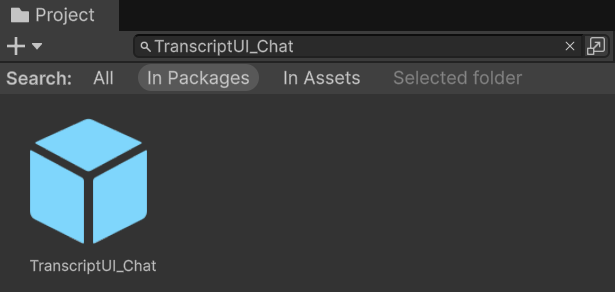
* In the Project window search bar, search:
* `TranscriptUI_Chat`
* Make sure your search scope includes **In Packages** or **All**.
* Alternatively, you can use the package path:
* `Packages/com.convai.convai-sdk-for-unity/Prefabs/TranscriptUI/TranscriptUI_Chat.prefab`
{% endstep %}
{% step %}
**Add the prefab to your scene**
* Drag and drop **TranscriptUI\_Chat.prefab** into the scene.
* **Expected result:** The UI appears in the Hierarchy and is visible in Game view (Play Mode).
{% endstep %}
{% step %}
**Ensure an Event System exists**
* If your scene does not have an EventSystem:
* Right-click in Hierarchy → **UI → Event System**
* **Expected result:** An EventSystem exists and UI input works in Play Mode.
{% endstep %}
{% endstepper %}
## Troubleshooting
* **UI doesn’t respond to clicks/typing**
* Confirm there is exactly one EventSystem in the scene.
* **Prefab not found**
* Confirm the package is installed correctly.
* Confirm your Project window search includes “In Packages” or “All”.
## Conclusion
You’ve added the Transcript UI to your scene, enabling text input and readable conversation logs. You can now test conversations via keyboard or microphone.
{% hint style="info" %}
**Need help?** For questions, please visit the [**Convai Developer Forum**](https://forum.convai.com/).
{% endhint %}
---
# Agent Instructions
This documentation is published with GitBook. GitBook is the documentation platform designed so that both humans and AI agents can read, navigate, and reason over technical content effectively. Learn more at gitbook.com.
## Querying This Documentation
If you need additional information that is not directly available in this page, you can query the documentation by asking a question.
Perform an HTTP GET request on the following URL with the `ask` and `goal` query parameters:
```
GET https://docs.convai.com/api-docs/plugins-and-integrations/unity-plugin-beta-overview/getting-started/setup/add-chat-ui-transcript-ui.md?ask=&goal=
```
`ask` is the immediate question: it should be specific, self-contained, and written in natural language.
`goal` is what the user is ultimately trying to achieve, the reason they need the answer. Sharing it helps GitBook give you a better, more relevant answer. A goal is most helpful when it describes the outcome the user wants rather than restating the question. For example, with `ask=how do I create an API token`, a goal like `automate deployments from our CI pipeline` lets GitBook tailor the answer to that use case.
The response will contain a direct answer to the question and relevant excerpts and sources from the documentation.
Use this mechanism when the answer is not explicitly present in the current page, you need clarification or additional context, or you want to retrieve related documentation sections.