> For the complete documentation index, see [llms.txt](https://docs.convai.com/api-docs/llms.txt). Markdown versions of documentation pages are available by appending `.md` to page URLs; this page is available as [Markdown](https://docs.convai.com/api-docs/plugins-and-integrations/unity-plugin-beta-overview/migration-guide.md).
# Migration Guide
Convai Plugin 3.3.4 to 4.0.0
This guide explains how to migrate a Unity project from the old Convai SDK to the latest Convai SDK.
{% hint style="warning" %}
Important: Back Up Your Project
Before you begin, create a full backup of your Unity project to avoid accidental data loss.
{% endhint %}
{% stepper %}
{% step %}
**Remove the old Convai SDK**
1. Open your Unity project.
2. In the Project window, go to `Assets`.
3. Locate the `Convai` folder from the old SDK.
4. Delete the entire folder.
After removal, Unity may show compile errors until all references are migrated.
{% endstep %}
{% step %}
**Install the latest Convai SDK**
Install the newest SDK using one of the following:
**Option A: Unity Asset Store**
1. Open Unity Asset Store.
2. Search for `Convai SDK`.
3. Download and import the latest package.
**Option B: Plugin Manager**
1. Open Plugin Manager.
2. Install the latest Convai plugin.
{% endstep %}
{% step %}
**Set up API key**
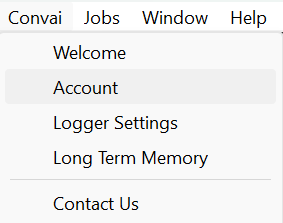
**Open the Convai Account window in Unity**
In the Unity top menu, go to **Convai → Account**.
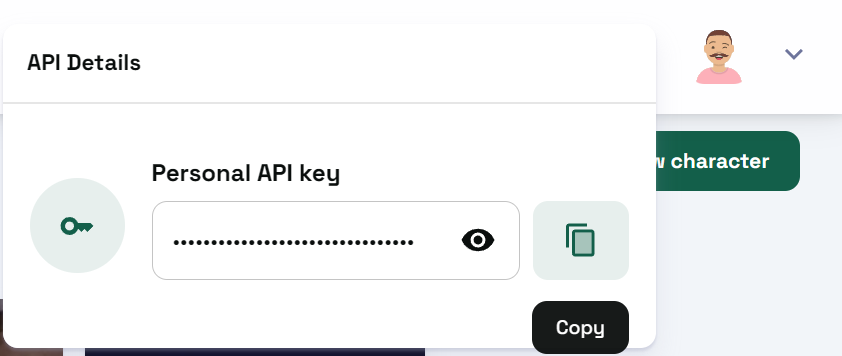
**Copy your API Key from Convai**
1. Open Convai in your browser and sign in.
2. Locate your **API Key** in the dashboard/profile settings.
3. Copy the API key.
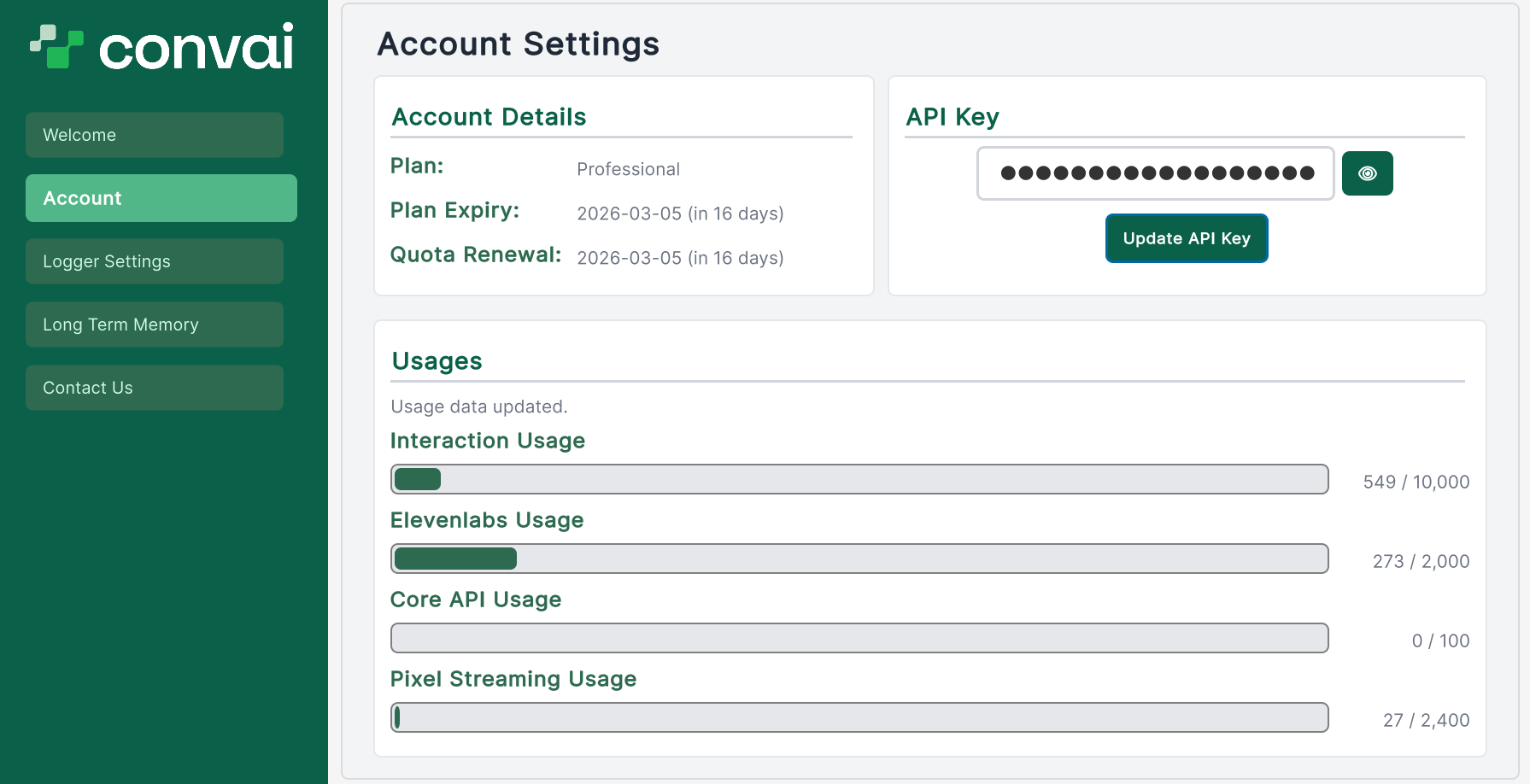
**Paste and update the key in Unity**
* Paste the key into the **API Key** field.
* Click **Update API Key**.
* **Expected result:** Account details and usage information refresh successfully.
{% endstep %}
{% step %}
**Update scene setup**
Update these key objects in your scene:
**Replace Convai Essentials with ConvaiDefaults**
1. Remove `ConvaiDefaults` from the scene.
2. Add `ConvaiDefaults` From "Convai SDK For Unity/Prefabs/Setup"
You can add it by either:
* Drag the `ConvaiDefaults` prefab from the Prefabs/Setup folder into the scene.
* Searching for `ConvaiDefaults` in the Project window and adding it manually.
**Replace ConvaiNPC with ConvaiCharacter**
1. Select each NPC character object.
2. Remove missing/legacy Convai components (if any).
3. Add the `Convai Character` component.
**Audio setup**
1. After adding `ConvaiCharacter`, use the setup button shown in the inspector.
2. This will automatically add/configure an `Audio Source` component.
{% endstep %}
{% step %}
**Lip Sync setup (optional)**
If your character is humanoid and uses facial lip movement:
1. Select the character object.
2. Add the `Convai Lip Sync` component.
3. Configure visemes/blendshapes according to your avatar setup.
You can explore more about adding Lip Sync [Here](https://docs.convai.com/api-docs/plugins-and-integrations/unity-plugin-beta-overview/getting-started/setup/adding-lip-sync-to-your-character)
{% endstep %}
{% endstepper %}
---
# Agent Instructions
This documentation is published with GitBook. GitBook is the documentation platform designed so that both humans and AI agents can read, navigate, and reason over technical content effectively. Learn more at gitbook.com.
## Querying This Documentation
If you need additional information that is not directly available in this page, you can query the documentation dynamically by asking a question.
Perform an HTTP GET request on the current page URL with the `ask` query parameter, and the optional `goal` query parameter:
```
GET https://docs.convai.com/api-docs/plugins-and-integrations/unity-plugin-beta-overview/migration-guide.md?ask=&goal=
```
`ask` is the immediate question: it should be specific, self-contained, and written in natural language.
`goal` is optional and describes the broader end goal you are ultimately trying to accomplish on behalf of the user. GitBook uses it to tailor the answer towards what is most useful for that goal.
The response will contain a direct answer to the question and relevant excerpts and sources from the documentation.
Use this mechanism when the answer is not explicitly present in the current page, you need clarification or additional context, or you want to retrieve related documentation sections.