> For the complete documentation index, see [llms.txt](https://docs.convai.com/api-docs/llms.txt). Markdown versions of documentation pages are available by appending `.md` to page URLs; this page is available as [Markdown](https://docs.convai.com/api-docs/plugins-and-integrations/unity-plugin-beta-overview/getting-started/setup/add-lip-sync-to-your-character/lip-sync-profiles-and-mappings/creating-a-custom-map.md).
# Creating a Custom Map
Create a custom Lip Sync map, understand the Map Inspector, and connect supported profile channels to your character's blendshapes in Unity.
## Introduction
A **Lip Sync Map** defines how incoming Lip Sync channels are routed to the blendshapes on a specific character mesh.
You need a custom map when your character does not follow the built-in blendshape naming conventions, or when you want more control over how specific channels behave.
This page walks through the Map Inspector and shows how to build a custom map from scratch.
## Before You Start
Before creating a map, make sure you already know which supported profile format your character uses.
Currently supported profile formats are:
* `arkit`
* `mha`
* `cc4_extended`
Your map must target the correct profile. A map only works correctly when its target profile matches the active Lip Sync profile used by the character setup.
## Understanding the Map Inspector
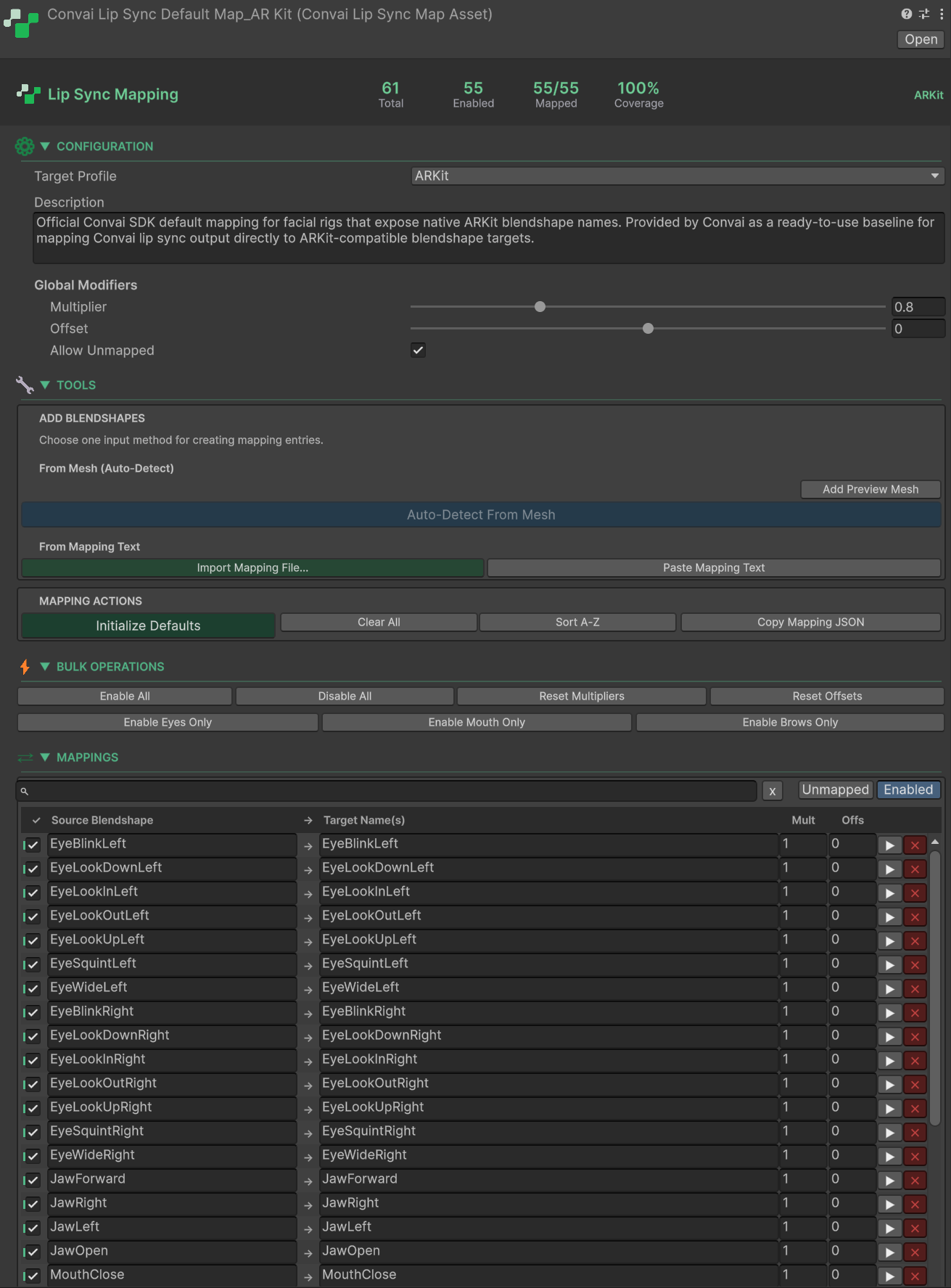
When you select a `ConvaiLipSyncMapAsset`, the Inspector is divided into several sections.
### Header
At the top of the Inspector, you will see a summary of the current mapping state.
| Counter | Meaning |
| ------------ | --------------------------------------------------- |
| **Total** | Total number of mapping entries |
| **Enabled** | Number of active entries |
| **Mapped** | Number of entries with at least one assigned target |
| **Coverage** | Percentage of enabled entries that are mapped |
The profile badge indicates which profile this map targets.
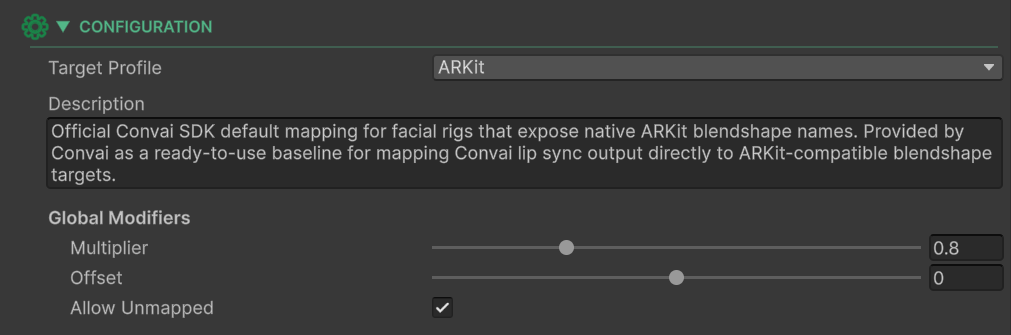
### Configuration Section
This section defines the map identity and global behavior.
#### Target Profile
Select the profile that this map is built for.
This must match the profile used by the Lip Sync component.
#### Description
An optional editor-only note for your own project organization.
#### Global Modifiers
These settings affect the output of the map as a whole.
| Setting | Description |
| -------------- | ------------------------------------------ |
| **Multiplier** | Scales all output values |
| **Offset** | Adds a constant value to all output values |
A global multiplier around `0.8` is often a good starting point for natural-looking results on many rigs.
#### Allow Unmapped
When enabled, channels without explicit entries can be forwarded directly using the source channel name as the target blendshape name.
This can be useful during setup or testing, especially when your character already follows most of the expected naming convention.
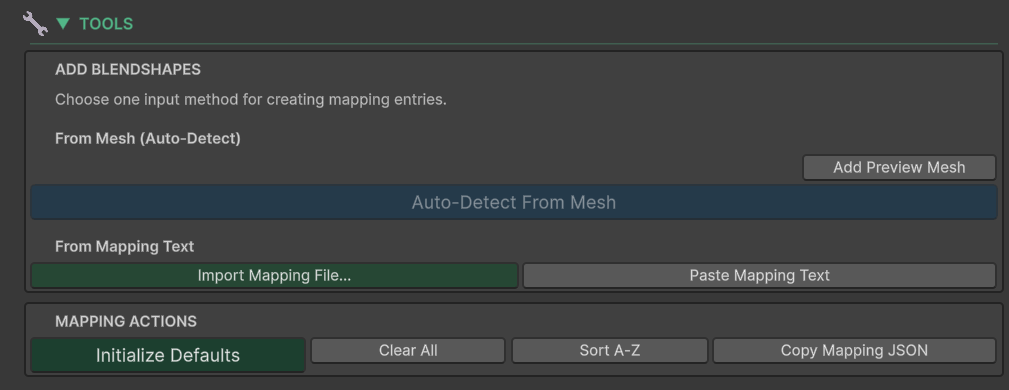
### Tools Section
This section helps populate or import mappings more quickly.
#### From Mesh: Auto Detect
This is the fastest way to generate mappings for a real character.
1. Add a preview mesh using a `SkinnedMeshRenderer`
2. Choose a matching mode
3. Run **Auto-Detect From Mesh**
The SDK compares the mesh blendshape names to the profile source channels and tries to match them automatically.
**Matching modes**
| Mode | Behavior |
| ------------ | -------------------------------------------------- |
| **Exact** | Names must match exactly, ignoring case |
| **Contains** | One name can contain the other |
| **Fuzzy** | Common rig prefixes are stripped before comparison |
Recommended workflow:
1. Start with **Exact**
2. If coverage is low, try **Contains**
3. If needed, try **Fuzzy**
#### From Mapping Text
You can also import mapping data from JSON.
Available options include:
* importing a mapping file
* pasting mapping text directly
* copying the current mapping as JSON
This is useful for team workflows, backup, and migration.
#### Mapping Actions
| Action | Result |
| ----------------------- | ------------------------------------------------------- |
| **Initialize Defaults** | Creates identity-style entries for the selected profile |
| **Clear All** | Removes all entries |
| **Sort A-Z** | Sorts entries alphabetically |
| **Copy Mapping JSON** | Copies the current map as JSON |
### Bulk Operations
Bulk tools help you manage large maps quickly.
| Action | Result |
| --------------------- | ----------------------------------------- |
| **Enable All** | Enables every entry |
| **Disable All** | Disables every entry |
| **Reset Multipliers** | Resets all per-entry multipliers to `1.0` |
| **Reset Offsets** | Resets all per-entry offsets to `0` |
| **Enable Eyes Only** | Enables only eye-related channels |
| **Enable Mouth Only** | Enables only mouth-related channels |
| **Enable Brows Only** | Enables only brow-related channels |
These operations are especially useful when debugging or isolating part of a face rig.
### Mappings Section
This is the main routing table of the map.
Each row is a mapping entry that connects one source channel to one or more target blendshapes.
| Column | Description |
| --------------------- | ----------------------------------- |
| **Source Blendshape** | The incoming channel name |
| **Target Name(s)** | One or more mesh blendshape targets |
| **Mult** | Per-entry multiplier |
| **Offs** | Per-entry offset |
You can search the list, filter by enabled entries, and isolate unmapped items to finish setup faster.
### Mapping Entry Behavior
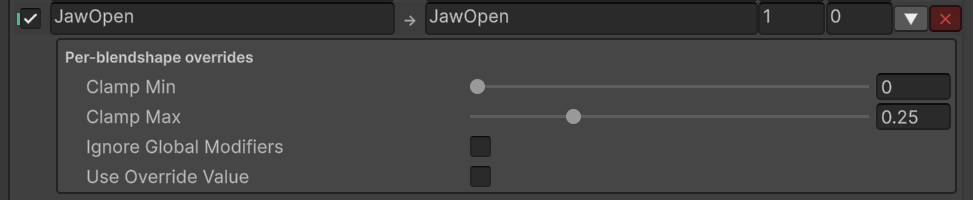
Each mapping entry can include additional controls beyond its visible table fields.
| Field | Description |
| --------------------------- | ---------------------------------------------- |
| **Enabled** | Turns the entry on or off |
| **Use Override Value** | Replaces the incoming value with a fixed value |
| **Override Value** | Constant value used when override is enabled |
| **Ignore Global Modifiers** | Skips the map-wide multiplier and offset |
| **Clamp Min / Max** | Limits the final output range |
A single source channel can also drive multiple target blendshapes. This is useful when one expression needs to affect several shapes on the mesh.
## Output Processing Order
The final output value is calculated in this order:
```
rawValue -> per-entry multiplier -> per-entry offset -> clamp
-> global multiplier -> global offset
```
If **Ignore Global Modifiers** is enabled, the last two steps are skipped for that entry.
## Create a Custom Map
{% stepper %}
{% step %}
**Create the map asset**
In the Project window, create a new map asset:
```
Create > Convai > LipSync > Map Asset
```
Use a descriptive name such as:
```
LipSyncMap_MyCharacter
```
{% endstep %}
{% step %}
**Select the target profile**
In the **Configuration** section, set the **Target Profile** to the profile your character uses.
{% endstep %}
{% step %}
**Populate the entries**
You can choose one of two common workflows.
**Option A: Auto-detect from mesh**
1. Add your `SkinnedMeshRenderer` as the preview mesh
2. Choose **Exact** mode first
3. Run **Auto-Detect From Mesh**
4. Review the header coverage result
5. If needed, retry with **Contains** or **Fuzzy**
**Option B: Initialize defaults and edit manually**
1. Click **Initialize Defaults**
2. Review the generated identity-style entries
3. Replace target names wherever your mesh uses different blendshape names
{% endstep %}
{% step %}
**Tune the motion**
Adjust the map until the character behaves naturally.
Common adjustments include:
* lowering the global multiplier if expressions feel too strong
* adding per-entry clamping for channels like jaw open
* disabling channels your rig should not use
* using fan-out when one source should drive multiple targets
{% endstep %}
{% step %}
**Assign the map**
Once the map is ready, assign it to the **Lip Sync Map** field on your character's Lip Sync component.
When a valid custom map is assigned and its target profile matches, it takes precedence over the built-in default map.
{% endstep %}
{% endstepper %}
## Practical Tips
#### Use coverage as a setup indicator
Coverage is one of the fastest ways to judge how complete your mapping is.
#### Start simple
Begin with identity mapping or auto-detect, then refine only the entries that actually need adjustment.
#### Disable what your rig does not support
If your character has no relevant target for a channel, disabling that entry is often cleaner than leaving it partially configured.
#### Tune jaw motion carefully
Jaw-related channels often benefit from clamping so that speech stays expressive without becoming exaggerated.
## Conclusion
A custom map gives you precise control over how supported Lip Sync channels drive a specific character mesh. Once the target profile is set correctly, the map becomes the layer that turns incoming facial data into stable, character-specific animation inside Unity.
{% hint style="info" %}
**Need help?** For questions, please visit the [**Convai Developer Forum**](https://forum.convai.com/).
{% endhint %}
---
# Agent Instructions
This documentation is published with GitBook. GitBook is the documentation platform designed so that both humans and AI agents can read, navigate, and reason over technical content effectively. Learn more at gitbook.com.
## Querying This Documentation
If you need additional information that is not directly available in this page, you can query the documentation dynamically by asking a question.
Perform an HTTP GET request on the current page URL with the `ask` query parameter, and the optional `goal` query parameter:
```
GET https://docs.convai.com/api-docs/plugins-and-integrations/unity-plugin-beta-overview/getting-started/setup/add-lip-sync-to-your-character/lip-sync-profiles-and-mappings/creating-a-custom-map.md?ask=&goal=
```
`ask` is the immediate question: it should be specific, self-contained, and written in natural language.
`goal` is optional and describes the broader end goal you are ultimately trying to accomplish on behalf of the user. GitBook uses it to tailor the answer towards what is most useful for that goal.
The response will contain a direct answer to the question and relevant excerpts and sources from the documentation.
Use this mechanism when the answer is not explicitly present in the current page, you need clarification or additional context, or you want to retrieve related documentation sections.