> For the complete documentation index, see [llms.txt](https://docs.convai.com/api-docs/llms.txt). Markdown versions of documentation pages are available by appending `.md` to page URLs; this page is available as [Markdown](https://docs.convai.com/api-docs/plugins-and-integrations/unity-plugin-beta-overview/features/narrative-design/quick-start.md).
# Quick Start
Walk through the complete Inspector-first setup — Manager, Trigger, and collider zone — and trace the full signal path from player interaction through to a confirmed section change in Play Mode.
## Get Your First Scene Running with Narrative Design
This guide walks you through the fastest path to a working Narrative Design setup. By the end, you will have a character that reacts to a section change when the player walks through a trigger zone — no code required, entirely through the Inspector.
{% hint style="info" %}
**Prerequisites**
* A `ConvaiCharacter` component is in your scene with a valid character ID.
* Your character has at least one section and one trigger defined in the [Convai dashboard](https://convai.com).
* Your Convai API key is configured in **Tools → Convai → Configuration**.
{% endhint %}
## Steps
{% stepper %}
{% step %}
**Add the Narrative Design Manager**
Select the GameObject that has your `ConvaiCharacter` component. In the Inspector, click **Add Component** and search for **Narrative Design Manager** (path: **Convai > Narrative Design Manager**).
The Manager auto-detects the `ConvaiCharacter` on the same GameObject. If your character is on a different GameObject, drag it into the **Character** field.
{% endstep %}
{% step %}
**Sync Sections from the Dashboard**
In the Manager's Inspector, click **Sync with Backend**. The SDK fetches your narrative sections and populates the **Narrative Sections** list.
Each entry shows the section's name from the dashboard. You will wire events to these entries in the next step.
{% hint style="warning" %}
If the list stays empty, check that your character ID is set on `ConvaiCharacter` and your API key is valid under **Project Settings > Convai SDK**. The **Last Fetch Error** field shows the specific error if something went wrong.
{% endhint %}
{% endstep %}
{% step %}
**Wire a Section Event**
Expand the first section entry in the **Narrative Sections** list. You will see two Unity Events: **On Section Start** and **On Section End**.
Click **+** on **On Section Start**, drag any GameObject into the object field, and choose a method to call. The easiest option is to use the `NarrativeDesignDebugLogger` helper script below — add it to any GameObject, drag that GameObject into the listener field, and select `NarrativeDesignDebugLogger.LogSectionStarted`.
NarrativeDesignDebugLogger.cs
```csharp
using UnityEngine;
public class NarrativeDesignDebugLogger : MonoBehaviour
{
[SerializeField] private string _label = "Section";
/// Wire to a UnitySectionEventConfig.OnSectionStart Unity Event.
public void LogSectionStarted()
{
Debug.Log($"[NarrativeDesign] {_label} started.", this);
}
/// Wire to ConvaiNarrativeDesignManager.OnAnySectionChanged Unity Event.
/// Receives the new section ID as a string.
public void LogSectionChanged(string sectionId)
{
Debug.Log($"[NarrativeDesign] Section changed → {sectionId}", this);
}
}
```
{% endstep %}
{% step %}
**Add the Narrative Design Trigger**
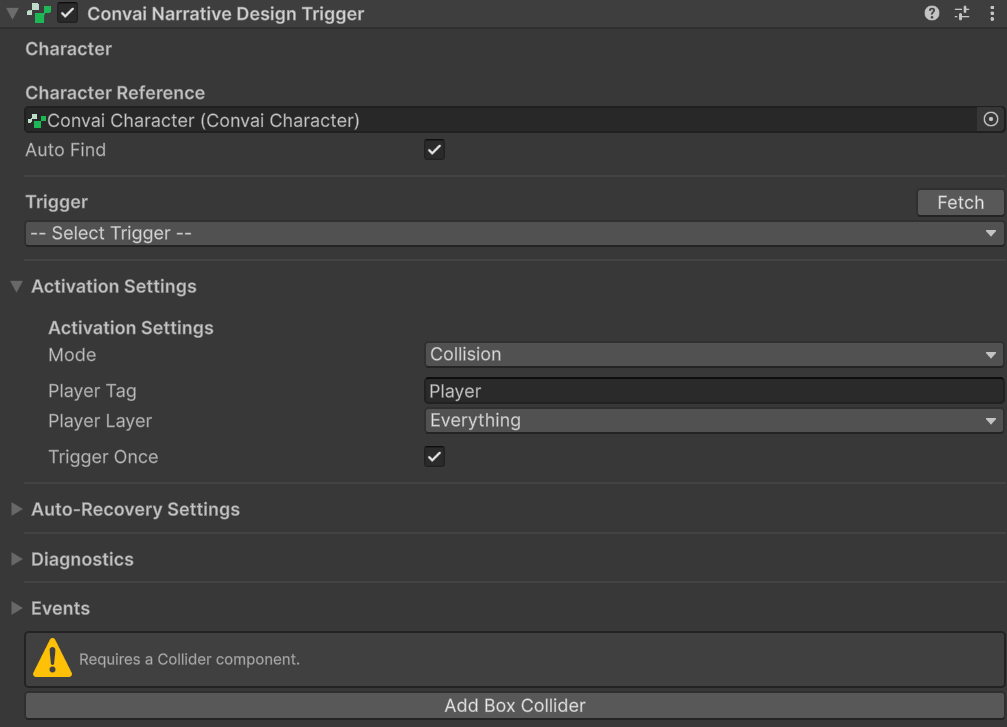
Create a new empty GameObject in your scene (position it where the player will walk). Click **Add Component** and search for **Convai Narrative Design Trigger** (path: **Convai > Convai Narrative Design Trigger**).
Drag your `ConvaiCharacter` into the **Character** field, or leave it blank to let **Auto Find Character** locate it automatically.
{% endstep %}
{% step %}
**Fetch and Select a Trigger**
In the Trigger component's Inspector, click **Fetch** to load the named triggers from the dashboard. A dropdown appears — select the trigger that should advance the graph to your first section.
{% endstep %}
{% step %}
**Add a Collider**
The default activation mode is **Collision**, which uses Unity's `OnTriggerEnter`. On the same trigger GameObject, click **Add Component > Box Collider**. In the Box Collider's settings, enable **Is Trigger**.
Size the collider to cover the zone where you want the trigger to fire. In the Scene view, the green wireframe box shows the detection area.
{% endstep %}
{% step %}
**Press Play and Walk Through**
{% hint style="warning" %}
**Player setup checklist — verify all three before pressing Play:**
* **Tag:** the player GameObject's tag must be set to `Player` (Unity's default tag). The Trigger component matches by tag to identify the player.
* **Collider:** the player must have a Collider component. Without it, `OnTriggerEnter` will never fire regardless of overlap.
* **Rigidbody:** either the trigger zone or the player must have a `Rigidbody`. Add it to the **player** — if you add it to the trigger zone instead, you will need to repeat that for every trigger object in the scene.
Missing any of these is the most common reason the trigger appears to do nothing in Play Mode.
{% endhint %}
Enter Play Mode and move the player through the collider zone. When the trigger fires:
1. The SDK sends the trigger name to the Convai backend.
2. The backend advances the graph and returns the new section ID.
3. `ConvaiNarrativeDesignManager` receives the section change and fires **On Section Start** on the matching section entry.
4. Your `Debug.Log` call appears in the Console confirming the section is now active.
{% hint style="success" %}
You should see the section ID logged in the Console when the player enters the zone. The character's next response will reflect the new section's objectives.
{% endhint %}
{% endstep %}
{% endstepper %}
## What Just Happened
Walking through the collider zone set off a chain of events across the entire Narrative Design stack:
1. The `ConvaiNarrativeDesignTrigger` detected the player via `OnTriggerEnter` and called `InvokeTrigger()` with the trigger name you selected.
2. The SDK queued the trigger until the character's real-time session was open, then sent a `trigger-message` over the RTVI connection to the Convai backend.
3. The backend advanced the narrative graph along the edge matching that trigger name and responded with a `behavior-tree-response` message containing the new section ID.
4. `ConvaiNarrativeDesignManager` matched the incoming section ID against its local `UnitySectionEventConfig` list and fired `OnSectionStart` on the matching entry.
5. Your `Debug.Log` listener ran, confirming the section change in the Console.
From this point, the character's objectives and conversational behaviour reflect the new section's configuration.
## Conclusion
You now have a working Narrative Design setup driven entirely from the Inspector. This setup uses default settings for everything. To go further:
* [Setting Up the Narrative Design Manager](/api-docs/plugins-and-integrations/unity-plugin-beta-overview/features/narrative-design/setting-up-the-narrative-design-manager.md) — configure section events, understand the sync status panel, and explore global events.
* [Setting Up Narrative Design Triggers](/api-docs/plugins-and-integrations/unity-plugin-beta-overview/features/narrative-design/setting-up-narrative-design-triggers.md) — switch activation modes, configure queueing behaviour, and wire trigger events.
* [Template Keys: Dynamic Narrative Variables](/api-docs/plugins-and-integrations/unity-plugin-beta-overview/features/narrative-design/template-keys-dynamic-narrative-variables.md) — inject the player's name or scenario parameters into the character's objectives.
---
# Agent Instructions
This documentation is published with GitBook. GitBook is the documentation platform designed so that both humans and AI agents can read, navigate, and reason over technical content effectively. Learn more at gitbook.com.
## Querying This Documentation
If you need additional information that is not directly available in this page, you can query the documentation by asking a question.
Perform an HTTP GET request on the following URL with the `ask` and `goal` query parameters:
```
GET https://docs.convai.com/api-docs/plugins-and-integrations/unity-plugin-beta-overview/features/narrative-design/quick-start.md?ask=&goal=
```
`ask` is the immediate question: it should be specific, self-contained, and written in natural language.
`goal` is what the user is ultimately trying to achieve, the reason they need the answer. Sharing it helps GitBook give you a better, more relevant answer. A goal is most helpful when it describes the outcome the user wants rather than restating the question. For example, with `ask=how do I create an API token`, a goal like `automate deployments from our CI pipeline` lets GitBook tailor the answer to that use case.
The response will contain a direct answer to the question and relevant excerpts and sources from the documentation.
Use this mechanism when the answer is not explicitly present in the current page, you need clarification or additional context, or you want to retrieve related documentation sections.