> For the complete documentation index, see [llms.txt](https://docs.convai.com/api-docs/llms.txt). Markdown versions of documentation pages are available by appending `.md` to page URLs; this page is available as [Markdown](https://docs.convai.com/api-docs/plugins-and-integrations/convai-unity-sdk/getting-started/configure-api-key.md).
# Configure the API key
Enter and validate your Convai API key for local development in the Unity Editor so a Convai character can authenticate while you build a scene.
The Convai SDK for Unity's **API Key** authentication mode reads an API key tied to your Convai account directly from the project's saved settings. Use this page to enter that key for local development in the Unity Editor — iterating on a scene, running sample scenes, or testing on a machine only you control.
{% hint style="warning" %}
API Key mode is for local development, not for a build you distribute. A player build produced in API Key mode contains your account API key, obfuscated but not encrypted, inside the shipped `ConvaiSettings` asset. Before you build anything you plan to ship, read [Authentication](/api-docs/plugins-and-integrations/convai-unity-sdk/authentication.md) and switch to Auth Token mode.
{% endhint %}
{% stepper %}
{% step %}
#### Copy your API key
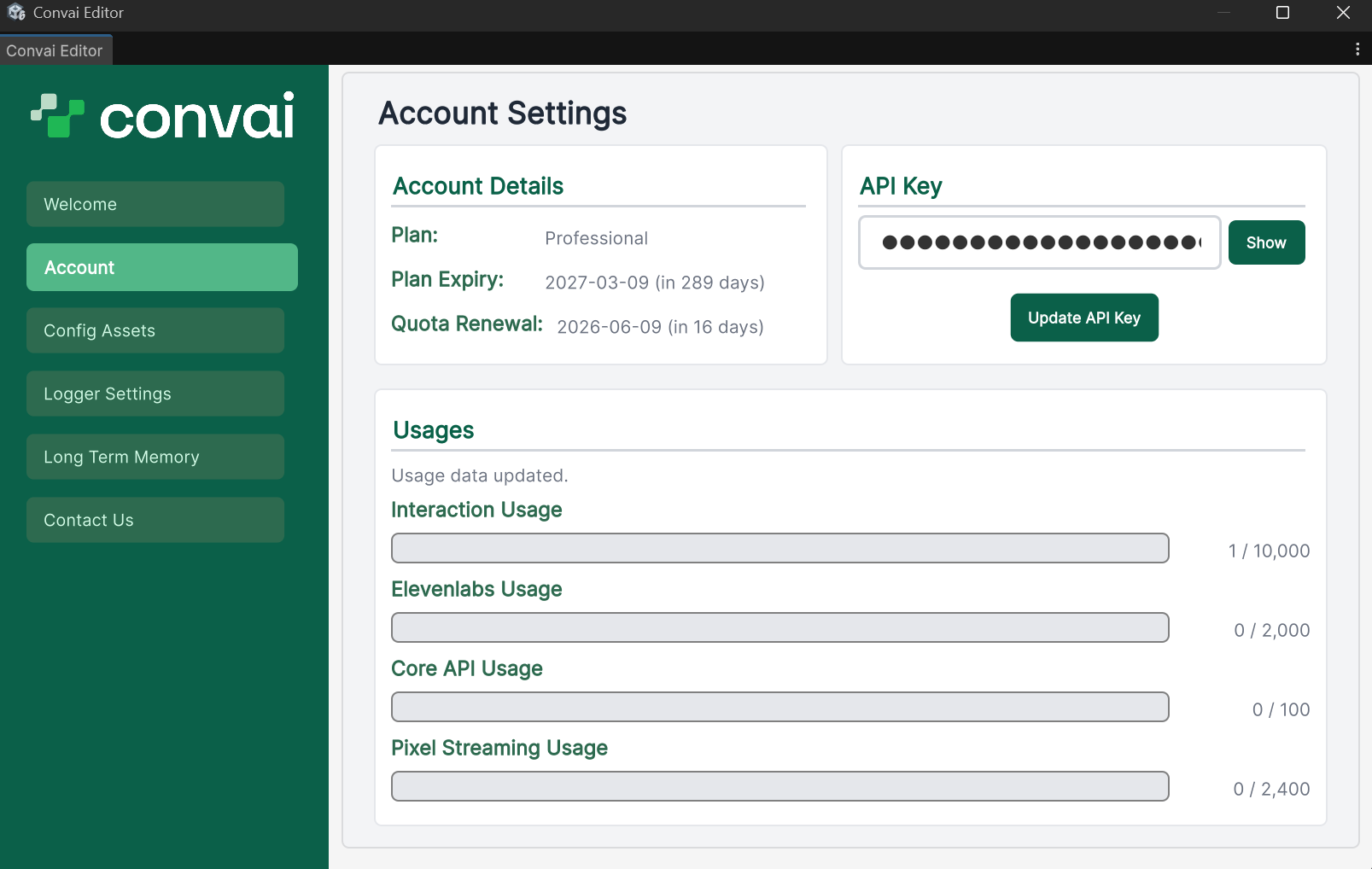
Log in to your [Convai dashboard](https://convai.com), navigate to **Account Settings**, and copy your API key.
{% endstep %}
{% step %}
#### Open the Credentials section
In the Unity Editor menu bar, open **Convai > Settings** (or **Edit > Project Settings > Convai SDK**), then select the **Credentials** section. Leave **Auth Mode** set to **API Key**, its default.
{% endstep %}
{% step %}
#### Paste and validate the API key
Paste your API key into the **API Key** field, then select **Validate & Save**. Convai checks the key and, if it accepts the key, the SDK saves it to the project.
The status badge next to the button reports the result: **Key valid** when Convai accepts the key, or an error message such as **Key invalid** when it does not.
{% endstep %}
{% step %}
#### Verify the key is accepted
Run **GameObject > Convai > Validate Scene Setup**. A missing API key appears as a warning in the validator dialog. If no API key warning appears, your key is configured correctly.
{% endstep %}
{% endstepper %}
### How the key is used at runtime
The SDK reads the key from `ConvaiSettings` via the `ICredentialProvider` interface before initiating any connection to Convai. You do not need to pass the key manually in code — the SDK resolves it automatically on startup.
`Assets/Resources/ConvaiSettings.asset` stores the key obfuscated (XOR plus Base64), not encrypted — anyone with the SDK source can reverse it. Decide whether to commit this file to source control based on your team's security policy. If the project previously stored the key in plain text, the SDK migrates it to the obfuscated format automatically the first time the Unity Editor loads.
### Move to Auth Token mode before you ship
API Key mode has no equivalent of a server-issued, short-lived credential — the same account key that unlocks your Convai project sits in the build. For any build distributed to testers, players, or end users, switch to Auth Token mode instead, where a build processor strips the account key before the build and a server you control issues short-lived tokens at connect time.
{% content-ref url="/pages/Qz3amgJ54KyHWFyUqBBJ" %}
[Authentication](/api-docs/plugins-and-integrations/convai-unity-sdk/authentication.md)
{% endcontent-ref %}
{% content-ref url="/pages/31f40f584b5fb6b136f239a3d28d2ec74eb938e7" %}
[Custom credential provider](/api-docs/plugins-and-integrations/convai-unity-sdk/advanced-topics/custom-providers/custom-credential-provider.md)
{% endcontent-ref %}
### Next steps
With your API key in place, import a sample scene to verify the SDK is working before you build your own scene.
{% content-ref url="/pages/41c4fa4e32b4314bedf2eeac4548c536e758ce3f" %}
[Import and run sample scenes](/api-docs/plugins-and-integrations/convai-unity-sdk/getting-started/import-and-run-sample-scenes.md)
{% endcontent-ref %}
---
# Agent Instructions
This documentation is published with GitBook. GitBook is the documentation platform designed so that both humans and AI agents can read, navigate, and reason over technical content effectively. Learn more at gitbook.com.
## Querying This Documentation
If you need additional information that is not directly available in this page, you can query the documentation by asking a question.
Perform an HTTP GET request on the following URL with the `ask` and `goal` query parameters:
```
GET https://docs.convai.com/api-docs/plugins-and-integrations/convai-unity-sdk/getting-started/configure-api-key.md?ask=&goal=
```
`ask` is the immediate question: it should be specific, self-contained, and written in natural language.
`goal` is what the user is ultimately trying to achieve, the reason they need the answer. Sharing it helps GitBook give you a better, more relevant answer. A goal is most helpful when it describes the outcome the user wants rather than restating the question. For example, with `ask=how do I create an API token`, a goal like `automate deployments from our CI pipeline` lets GitBook tailor the answer to that use case.
The response will contain a direct answer to the question and relevant excerpts and sources from the documentation.
Use this mechanism when the answer is not explicitly present in the current page, you need clarification or additional context, or you want to retrieve related documentation sections.